I was browsing the Windows 10 system32 directory and this executable caught my eyes. I never looked at it before and the information on the internet was scarce. After checking its version information I learned that it’s supposed to be ‘Application Impact Telemetry Static Analyzer’. There is a thread on the Microsoft site that summarizes all the information about this program quite well (nothing is known :)), but the last entry at the time I read it says this (edited to remove some obvious typos):
The Microsoft Application Impact Telemetry Agent is installed with Windows and runs as a scheduled task when Windows boots. Application Impact Telemetry Agent is designed to collect various system information and report to Microsoft as part of Windows Customer Experience Improvement Program (CEIP). CEIP collects information about how our customers use Microsoft programs and about some of the problems they encounter.
Basically a spyware, collects information from your computer and sends it to the NSA servers Microsoft servers.
Still not much wiser I decided to poke around a bit more. I discovered that it takes a number of various arguments that I don’t fully understand, but for these I figured out I decided to document.
Who knows, maybe someone will find it useful.
So…
- -arp — no idea
- -dir <directory> — scans directory and retrieves telemetry for files present in the directory
- -dn – no idea
- -dnf – no idea
- -dro — no idea
- -e — enables logging the errors to the screen; it’s helpful to enable it during searches
- -fid — file ID for which telemetry is retrieved (see below)
- -fp — no idea
- -le — no idea
- -o — output file
- -op — no idea
- -pfn — no idea
- -ph — no idea
- -pid — program PID for which telemetry is retrieved (see below)
- -ui — no idea
- -wrt — no idea
The syntax is a bit quirky, so it’s good to always include the ‘-e’ argument to enable output of the error messages.
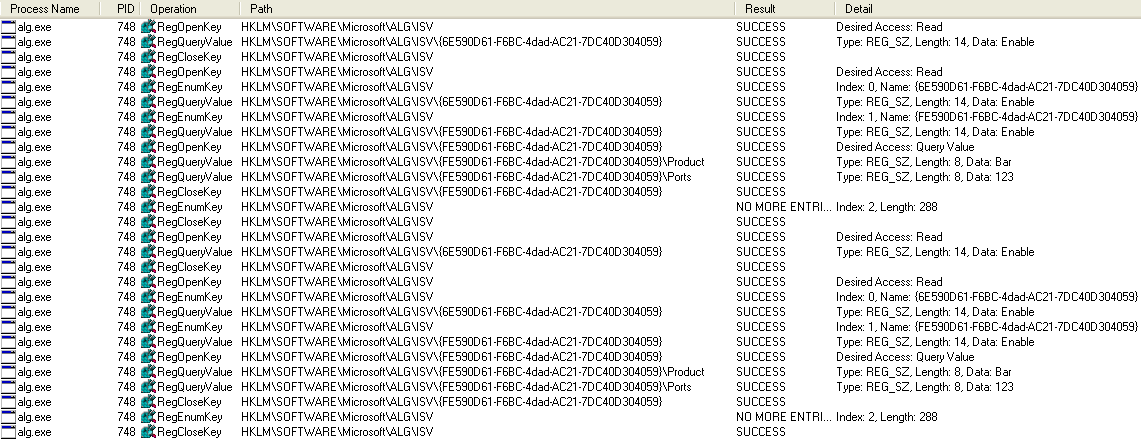
The PID (–pid) is not a process ID (decimal or hexadecimal), but a 44-character long string. I was surprised at first, until I used Procmon and discovered that the program is reading ‘\REGISTRY\A\’ hive which is a result of using RegLoadAppKey API function that in turn loads the local hives in a temporary folder that seem to be similar to the ‘Amcache.hve’ file. (update: I have updated the previous paragraph after some more testing – the ‘\REGISTRY\A\’ is related to the locally create hive file, but not ‘Amcache.hve’, at least not directly)
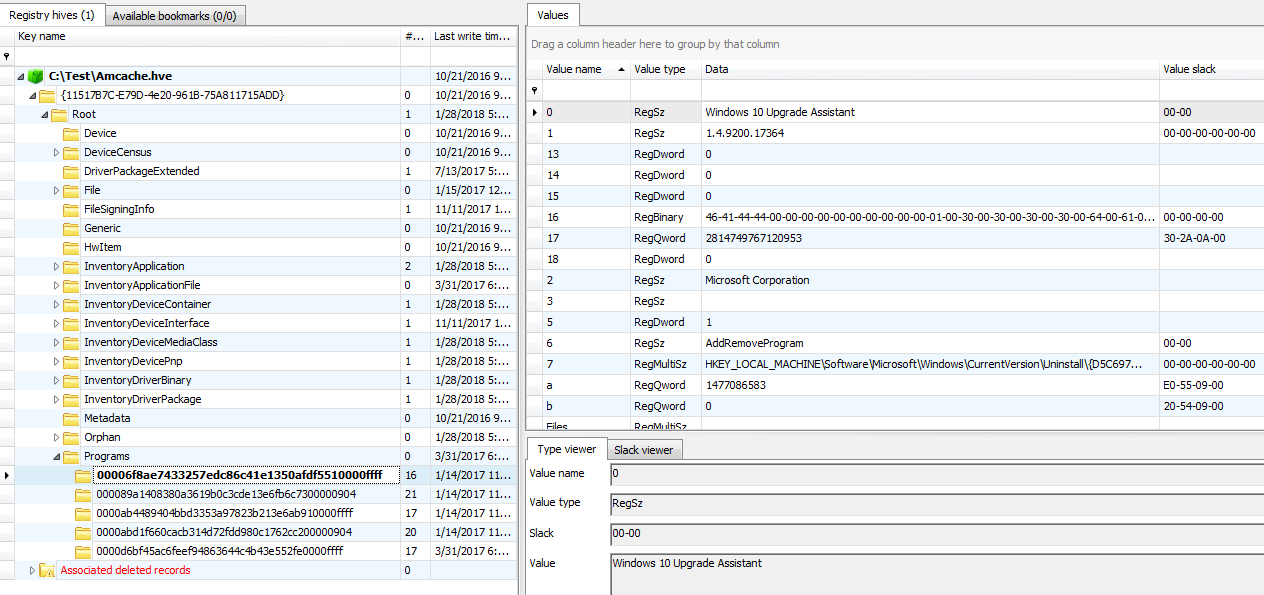
The PID it expects is an identifier one can find under the Programs node:
as shown using an excellent Registry Explorer from Eric R. Zimmerman’s toolkit:
 So… one can run e.g. this:
- aitstatic.exe -e -o pid_test -pid 00006f8ae7433257edc86c41e1350afdf5510000ffff
and obtain an output file ‘pid_test’ that contains the following data:
<?xml version="1.0" encoding="utf-8"?>
<AitStaticAnalysis
 ProgramId="00006f8ae7433257edc86c41e1350afdf5510000ffff"
 AnalysisVersion="1.60"
 DictionaryVersion="3.1"
 Type="Program"
 Id="00006f8ae7433257edc86c41e1350afdf5510000ffff"/>
Not much. I tried to run it with other PIDs I spotted and eventually got a much larger file as a result of using the Total Commander’s program ID obtained from ‘Amcache.hve’.
<?xml version="1.0" encoding="utf-8"?>
<AitStaticAnalysis
 ProgramId="0000ab4489404bbd3353a97823b213e6ab910000ffff"
 AnalysisVersion="1.60"
 DictionaryVersion="3.1"
 Type="Program"
 Id="0000ab4489404bbd3353a97823b213e6ab910000ffff">
<AitFile
 ErrorCode="0"
 Name="TCMDLZMA.DLL"
 Id="0000101c41574f37269984e55e89e49dcf0b0db2e695">
<AitCategory Id="ApiStatic">
<AitFeature Name="kernel32.dll!CloseHandle"/>
<AitFeature Name="kernel32.dll!CreateEventA"/>
<AitFeature Name="kernel32.dll!CreateSemaphoreA"/>
<AitFeature Name="kernel32.dll!CreateThread"/>
<AitFeature Name="kernel32.dll!DeleteCriticalSection"/>
<AitFeature Name="kernel32.dll!EnterCriticalSection"/>
<AitFeature Name="kernel32.dll!ExitProcess"/>
<AitFeature Name="kernel32.dll!ExitThread"/>
<AitFeature Name="kernel32.dll!FreeEnvironmentStringsA"/>
<AitFeature Name="kernel32.dll!FreeEnvironmentStringsW"/>
<AitFeature Name="kernel32.dll!GetACP"/>
<AitFeature Name="kernel32.dll!GetCPInfo"/>
<AitFeature Name="kernel32.dll!GetCommandLineA"/>
<AitFeature Name="kernel32.dll!GetCurrentProcess"/>
<AitFeature Name="kernel32.dll!GetCurrentThreadId"/>
...
[...]
The file is pretty long and appears to contain:
- List of programs in Total Commander directory – focuses is on .exe and .dll
- Each binary is parsed to extract its static dependencies (imported functions)
- The output file includes these dependencies in a fancy xml format
So, it’s a bit like running Dependency Walker on the whole directory and extracting the info about the files.
Another way to obtain the dependencies information is to use the ‘-dir’ parameter. It takes one argument which is a directory name we want to enumerate.
Running:
- aitstatic.exe -e -o dir_test -dir .
will give us a similar listing and will include data from the current directory.
The FID parameter takes 2 44-character long identifiers that seem to be searched for inside the Root\File branch, but I didn’t make it work in the end.
All in all, probably a bit of wasted time, but perhaps someone will find it useful.