Perfect Timestomping a.k.a. Finding suspicious PE files with clustering

In my previous post about clustering, I mentioned that it can be used as an efficient  data reduction technique. I also provided some examples of timestamps that could be useful for detecting suspicious files on the system. One of them was a compilation time  embedded inside Portable Executables (PE). Turns out that putting this idea into practice is easy and today I wrote a simple perl script that implements this functionality in a few dozen lines of code.

The script scans directory (recursively, if requested) and finds all Portable Executables. It then reads their compilation timestamps and groups them into clusters. Each cluster is a ‘bucket’ holding all binaries compiled within a window of 1 day (86400 seconds). You can play around with the script and change the value of CLUSTER_BOUNDARY to e.g. 30 days and see what happens.

On a screenshot below you can see the script at work – finding all PE files and grouping them into clusters:

And after processing the whole folder, the resulting clusters are printed out:

One needs to quickly scroll through these groups and look at isolated / oprhaned files or small groups and this should hopefully help in finding the bad apples. You can also toy around with the script over clean directories to see what intel you can gather from the compilation timestamps of all PE files inside some specific directory.

For example, after running it over the c:\window\system32 directory of various Windows flavors you may spot some interesting patterns:

  • Portable Executables that are part of Windows OS are not build in an alphabetic order (I originally hoped they are – it could be an interesting pattern to use to spot ‘out-of-orderly’ named executables sandwiched between 2 clean OS files)
  • Still, many OS binaries are compiled sequentially (with a few minutes difference) so many can be easily ignored in analysis
  • On Windows XP and Vista DLLs and EXEs seem to be compiled separately (this is an interesting pattern as  seeing .exe in a sequence of  .dlls should be immediately treated as suspicious; note that system updates may affect this pattern)
  •  On Windows 7 both EXEs and DLLs seem to be compiled w/o any specific pattern 🙁
  • Clean installation has a very small number of clusters within system32 directory; updated/patched binaries make analysis harder (still, updates will be most likely seen as separate clusters)
  • Files dropped by installers, malware, as well as packed executables, compiled scripts e.g. perl32exe, etc. should stand out, even if timestomped – see how psexec service executable stands out below

Compilation time is a very useful characteristic of Portable Executable. Malware authors occasionally zero it or change it to a random value, but this is still not a very common practice. This, of course is a very good news for investigators and forensic analysts. If timestamp is real (not tampered  with), compilation time of a malicious sample is so unique that it is most likely different from ‘typical’ timestamps that can be found e.g. within system32 directory. As mentioned earlier, PECluester should be able to group such randomly dropped files into separate cluster(s) even if the file system (e.g. $MFT) timestamps are timestomped.

Speaking of the devil. I mentioned ‘perfect timestomping’ in the title of this post.

Why?

Perfect timestomping of a Portable Executable would require not only changing the metadata on the file system, but also changing PE file’s compilation time (and all timestamps inside PE file that could reveal its compilation time) to some carefully chosen value that blends with compilation times of system files (especially for malware dropped inside system folders; for malware within application/temp data folders this – of course – is not that useful).

So, how would we go about finding such perfectly timestomped files?

Good news for forensic investigators is that a compilation timestamp is only one of many possible timestamps that can be found inside a typical Portable Executable. Unless malware author takes a really good care of all these timestamps (either understands Portable Executable file format quite well or uses a specialized tool), there is a high chance one may find some inconsistencies. While not many PE timestamps are properly updated during compilation time (e.g. Resources, Import Table have placeholders for timestamps, but are often zeroed by the compiler), some may include timestamps e.g. Debug Directory as show on a screenshot below:

Other clues about the compilation time can be related to

  • embedded files (author might have forgotten to clean up their timestamps)
  • copyright banners for statically linked libraries
  • standard ‘template’ program icon (e.g. icons for win32 applications created via templates in RAD environment utilize always the same standard icon unless authors changes that; icons change between RAD versions and may give some clues as for the ‘age’ of the malware)
  • libraries/compiler signatures – this is difficult as it requires libraries of known patterns, IDA Pro’s FLIRT signatures come to mind here and may give some hints, but associating these with a specific date is close to impossible
  • even harder – specific to the compiler version code of exception handlers, prologue/epilogue code, compilation flags etc.

Back to PECluester – imho you can use it as an alternative to AV scans and a toy for further research. Go ahead and experiment. Enjoy!

You can download script here.
Beyond good ol’ Run key

I recently kept posting quite a lot about random stats from 300k/1M samples. Today something different for a change: non-obvious or less-known autorun entries.

The ‘obvious’ introduction

As we know, malware needs to work. To do so, it needs to ensure it runs when the system starts. Well, not really. In fact, it just needs to ensure it runs in general and can start at any time as long as it is at a right moment to activate its payload (e.g. keylogger doesn’t need to autostart with the system; it can activate when the user opens a browser or mail client).

Malware authors are really lucky.  There are so many autorun possibilities in Windows that it is really hard to count. One of the best known tools that try to enumerate most of the entries are Start Runners and Sysinternals’ autoruns. They both do a a great job by highlighting many of the suspicious files, but… deep inside the registry and file system exist a HUGE number of completely new, unexplored (or possibly less or under- explored) paths that can be (maybe already are)  misused.

Obviously, run-at-system start, run-at-logon are commonly used out of convenience, yet all file/registry locations supporting this persistence mechanism are already very well known and pretty much every single AV is always scanning these locations first (not to mention forensic investigators poking around on the analyzed system :)). There are of course many examples of other autostart locations that are not system/logon related and these include Browser Helper Objects, Layered Service Provider DLLs, codecs, protocols handlers, shell extensions, toolbars, deskbars, etc. etc. These are not all though and there is a lot of possibilities out there.  In this post I provide a quick brain dump of various ideas related to this subject – some may be considered silly, or not worth attention, but… oh well, it’s just a post about possibilities 🙂 Better evil known that unknown.

The autoruns hidden inside other applications

One of the non-standard autorun entries that is probably the most known and documented is the ICQ entry stored under:

  • HKEY_CURRENT_USER\Software\Mirabilis\ICQ\Agent\Apps

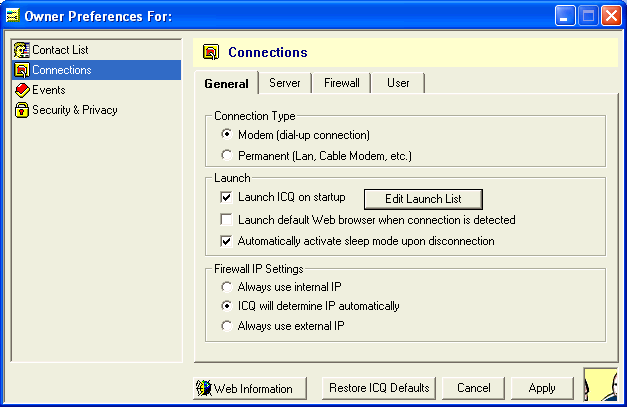
The old version of ICQ allowed to add a list of applications that it would launch when it connected to network – the following screenshots are taken from old versions of this great software (imho it used to be a real killer app!).

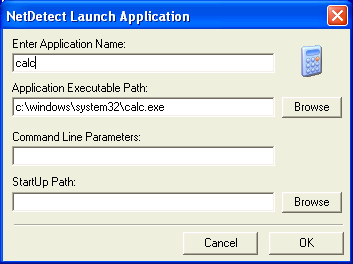
Adding calculator to be run by ICQ was relatively easy:

And it would then appear on the list:

Looking at the registry under

  • HKEY_CURRENT_USER\Software\Mirabilis\ICQ\Agent\Apps

would show us the actual entry:

I have a vague memory of successfully testing it ages ago, but since the old version no longer works and I was unable to confirm it for this blog post let’s just trust the evidence that can be found online: Googling for this key brings up quite a few hits that show evidence of it being actively used by malware.

As far as I know new versions of ICQ do not support it anymore.

This, obviously is not the only app ever developed that ‘by design’ helps in launching application when some task/event is completed.

For example, similar functionality can be found in many torrent applications e.g. utorrent:

Adding the entry as shown on the screenshot would make utorrent launch calculator every time it finishes downloading the torrent (the actual data for utorrent autorun is stored inside its configuration file settings.dat).

Same goes for bittorrent client (not a surprise the code of the clients being shared)

Again, the settings.dat holds the ‘autorun’ data:

There may be other applications like this.

The even more hidden autoruns hidden inside applications

Pretty much every single downloader, torrent client, media grabber, etc. contains an option to preview files a.k.a. media player.

This is certainly a possible malware’s autorun as it will be executed anytime someone tries to preview/prelisten the video/music downloaded from P2p client or grabbed from a media grabber; again in a case of e.g. for utorrent:

and emule:

There are certainly lots of applications like this.

‘Scanning’ files with AV when downloaded

Another option to place a malicious file resides in many applications e.g. browsers, mail clients. They allow to scan every single  file that has been downloaded from the internet, attached to email or received via Instant Messenger with an extremal application.

Such feature is available e.g. in Firefox with a Download Status Bar installed.

The about:config page shows the following options (false assigned to ‘downbar.function.virusScan’ property indicates the scan is being disabled)”

the default application selected is ‘C:/Program Files/myAnti-VirusProgram.exe’, but of course malware could easily replace it: 

and modify the ‘downbar.function.virusScan’ property to true.

Notably, placing malware as ‘c:\Program Files\myAnti-VirusProgram.exe’ doesn’t seem to work due to slash/backslash war (this could be a neat trick if it worked).

Windows Shell alternatives

Windows Explorer is not the only Windows Shell available. In fact there are lots of alternatives and each of them brings lots of new options to the table. Looking at programs used by hundreds of thousands (if not millions) of users and including Total Commander, FAR, and many others can cause a real headache. From an offensive perspective there are really a lot of opportunities: from plugins and extensions, to completely new (lame, but certainly workable) ‘rootkitish’ methods for hiding under (sic!) the shell (e.g. custom views, or even simple GUI attacks).

The less obvious places for malware autorun

Most of producers of scanners/printers/combos offer  ‘associated software’ that will be taking control of many aspects of the dialog between the user, device and computer.

One of the tasks handled by the software is  ‘Start this program’ function which is an application that runs when certain events happen e.g. you press a specific button on the scanner/printer. The following screenshot is taken on a system with a CanoScan 4400F scanner attached to it, but with no software installed. The ‘Start this program’ option is grayed out.

Installing a Canon Toolbox gives assigns this program to an event associated with various user activities e.g. pressing COPY button on the scanner.

Clicking the ComboBox reveals more events – all of them are associated with the specific application:

You are probably wondering now where the information about this is stored in the registry/on the file system.

The program responding to device events itself is an example of Push-Model Aware Applications added to the system via Windows Image Acquisition (WIA) / Still Image  interface (STI).

The location in the registry where the Push-Model Aware Applications installed on the system are actually listed are described in the article that I just linked to:

  • HKEY_LOCAL_MACHINE\SOFTWARE\Microsoft\Windows\CurrentVersion\StillImage\Registered Applications

The programs registered this way can respond to STI events. Of course, malware could overwrite/manipulate the entry and act as a man in the middle between the devioe and the actual software configured to respond to the event. It could also be added to respond to certain events – the actual registry entries that need to be added are described here (I have not tested it though): and include:

  • HKEY_LOCAL_MACHINE\SOFTWARE\Microsoft\Windows\CurrentVersion\explorer\AutoplayHandlers\Handlers
  • HKEY_LOCAL_MACHINE\SOFTWARE\Microsoft\Windows\CurrentVersion\StillImage\Registered Applications
  • HKEY_LOCAL_MACHINE\SYSTEM\CurrentControlSet\Control\StillImage\Events\STIProxyEvent

Autostart by re-using existing entries

Instead of adding new entries to Run/Startup folder, etc. malware can leverage existing registry entries. In many cases, swapping VERY common entries e.g. for jusched.exe from Java updater, or ctfmon.exe could do the trick. Another option is companion infection for active processes on the system – especially interesting for applications in a Portable format as they are used more and more often and not too many people actually inspect their content. They can also easily be hidden on an inspected system and escape routine analysis of Program Files directory.

Plugins,  Plugins,  Plugins

I mentioned plugins in a context of Windows Explorer alternatives, the same goes for various office suites, Drawing/design applications, gfx viewers (note e.g. Irfanview has a subfolder storing all the plugins – DLL files) and so on and so forth. This is a tip of an iceberg.

File System infection

One of the most interesting pieces of malware back in DOS era was DIR-II. It had a unique way of infecting executable files by modifying their cluster map in the FAT itself. Each .exe would point to a cluster containing the malicious code (always the same cluster) so with a malware NOT active in memory, the file system would appear to be corrupted (because of multiple entries pointing to the same cluster – a problem known as cross-linking). With malware active in memory it would ‘fix’ cross-linking on the fly and execute files properly.

The very same technique could be potentially implemented for NTFS – this would require placing a small .exe on a system then changing the cluster sequence within FILE Record to always point to a cluster occupied by .exe. Other alternative (especially for the one formatted with a FILE record larger than 1024 bytes) would require a tiny .exe that could be stored within the $MFT file record itself (replacing non-resident attribute with a resident attribute) while the actual clusters used by a host file could be stored either in a different part of the file record or within the malicious code itself. In both cases, small .exe would read original clusters and transfer control to the host. Very very non-trivial task. Luckily.