The topic of Extended Attributes (EA) has been recently covered in an excellent post by Corey. Entitled Extracting ZeroAccess from NTFS Extended Attributes it goes into (amazing) depth explaining on what EA is and how to extract this artifact from the system. It’s a pure forensic gold and if you haven’t read this post yet, please go ahead and do so before reading mine.
Similarly to Corey, I was very interested in researching EA, and I finally took some time tonight to have a deeper look at it myself. I actually wanted to dig in the code more than the $MFT artifacts alone not only to have something to write about (after all, Corey already covered everything! :-)), but also because I wanted to see how the EA is actually created and what system functions/APIs are used by malware. The reason behind this curiosity was improvement of my analysis tools and techniques, and a few other ideas that I will be quiet about for the moment.
I first assumed that the ZeroAccess’ EAs are created using ZwSetEaFile/NtSetEaFile function from ntdll.dll. I saw this API name popping up on some blogs and I saw it being referenced in my ZeroAccess memory/file dumps so it was a natural ‘breakpoint’ choice for OllyDbg analysis:

To my surprise, none of the samples I checked used this function at all!
Curious, I started digging into it a bit more and realized that for the samples I looked at, the EAs are actually created not by ZwSetEaFile/NtSetEaFile function, but by ZwCreateFile/NtCreateFile.
Surprised?
I was!
Looking at a documentation, you can see the following function parameters described on MSDN:
NTSTATUS NtCreateFile(
  _Out_     PHANDLE FileHandle,
  _In_      ACCESS_MASK DesiredAccess,
  _In_      POBJECT_ATTRIBUTES ObjectAttributes,
  _Out_     PIO_STATUS_BLOCK IoStatusBlock,
  _In_opt_  PLARGE_INTEGER AllocationSize,
  _In_      ULONG FileAttributes,
  _In_      ULONG ShareAccess,
  _In_      ULONG CreateDisposition,
  _In_      ULONG CreateOptions,
  _In_      PVOID EaBuffer,
  _In_      ULONG EaLength
);
Yes, it’s that simple.
One thing to note – the EA is added to files on both windows XP and Windows 7, but only under Windows 7 I observed the modification of services.exe. On Windows XP, it only appended EA to the ‘U’ file and nothing else.
Okay, I mentioned I had a couple of ideas why I wanted to research this feature. Now it’s time to reveal them!
Idea #1 – POC
Once I found out what APIs are being used by the malware, I was also able to produce a simple snippet of code that reproduces the functionality:
.586
.MODEL FLAT,STDCALL

 o equ OFFSET
 include    windows.inc
 include    kernel32.inc
 includelib kernel32.lib
 include    ntdll.inc
 includelib ntdll.lib
 include    masm32.inc
 includelib masm32.lib

IO_STATUS_BLOCK STRUCT
    union
    Status        dd ?
    Pointer        dd ?
    ends
    Information    dd ?
IO_STATUS_BLOCK ENDS

.data?
 file db 256 dup (?)
 fa   db 256 dup (?)
 _FILE_FULL_EA_INFORMATION struct
   NextEntryOffset dd ?
   Flags           db ?
   EaNameLength    db ?
   EaValueLength   dw ?
   EaName          db ?
 _FILE_FULL_EA_INFORMATION ends
 FEA equ _FILE_FULL_EA_INFORMATION
 io IO_STATUS_BLOCK <>
.code
  Start:
  invoke GetCL,1, o file
  lea    edi,[fa+_FILE_FULL_EA_INFORMATION.EaName]
  invoke GetCL,2, edi
  invoke lstrlenA,edi
  lea    esi,[fa+_FILE_FULL_EA_INFORMATION.EaNameLength]
  mov    [esi],al
  add    edi,eax
  inc    edi
  invoke GetCL,3, edi
  invoke lstrlenA,edi
  lea    esi,[fa+_FILE_FULL_EA_INFORMATION.EaValueLength]
  mov    [esi],al
  add    edi,eax
  invoke CreateFileA, o file, \
                      GENERIC_WRITE, \
                      0, \
                      NULL, \
                      CREATE_NEW, \
                      FILE_ATTRIBUTE_NORMAL, \
                      NULL
  xchg   eax,ebx
  mov    eax,edi
  sub    eax,o fa
  invoke NtSetEaFile,ebx,o io,o fa, eax
  invoke CloseHandle,ebx
  invoke ExitProcess,0
END Start
This code can be used for testing purposes in a lab environment.
You can either compile the code yourself using masm32 or you can use a precompiled binary – download it here.
To run:
ea.exe <full path name to a file> <EA name> <EA value>
e.g.:
ea.exe g:\test.txt foo bar
Remember to specify a full path to a file. Also, choose a non-existing file name for a file (the program won’t work with files that are already present).
Last, but not least – there is no error checks, you can add it yourself if you wish 🙂
Idea #2 – Reduce the FUD factor
While it is a novelty technique, it is not very advanced – a single API call does all the dirty job to _create_ the EA.
To _detect_ EA is not very difficult either – as long as you have a right tool to do so 🙂
Idea #3 – Show how to detect EA on a live system
Now that I got a POC, I can run it:
g:\test.txt foo bar
and then analyze changes introduced to the file system.
I can do it quickly with hmft.
hmft -l g: mft_list
I tested the program on a small drive that I use for my tests. I formatted it first to ensure its MFT is clean:

I then opened the mft_list file in a Total Commander’s Lister and searched for MFTA_EA. 
I am pasting the full record for your reference:
  [FILE]
    SignatureD                    = 1162627398
    OffsetToFixupArrayW           = 48
    NumberOfEntriesInFixupArrayW  = 3
    LogFileSequenceNumberQ        = 1062946
    SequenceValueW                = 1
    LinkCountW                    = 1
    OffsetToFirstAttributeW       = 56
    FlagsW                        = 1
    UsedSizeOfMFTEntryD           = 368
    AllocatedSizeOfMFTEntryD      = 1024
    FileReferenceToBaseRecordQ    = 0
    NextAttributeIdD              = 5
   --

    RESIDENT ATTRIBUTE
      AttributeTypeIdentifierD = 16
      LengthOfAttributeD       = 96
      NonResidentFlagB         = 0
      LengthOfNameB            = 0
      OffsetToNameW            = 0
      FlagsW                   = 0
      AttributeIdentifierW     = 0
      --
      SizeOfContentD          = 72
      OffsetToContentW        = 24
      --
        MFTA_STANDARD_INFORMATION
            CreationTimeQ         = 130036100539989520
            ModificationTimeQ     = 130036100539989520
            MFTModificationTimeQ  = 130036100539989520
            AccessTimeQ           = 130036100539989520
            FlagsD                = 32
            MaxNumOfVersionsD     = 0
            VersionNumberD        = 0
            ClassIdD              = 0
            OwnerIdD              = 0
            SecurityIdD           = 261
            QuotaQ                = 0
            USNQ                  = 0
            CreationTime (epoch)    = 1359136453
            ModificationTime (epoch)  = 1359136453
            MFTModificationTime (epoch)  = 1359136453
            AccessTime (epoch)           = 1359136453
   --

    RESIDENT ATTRIBUTE
      AttributeTypeIdentifierD = 48
      LengthOfAttributeD       = 112
      NonResidentFlagB         = 0
      LengthOfNameB            = 0
      OffsetToNameW            = 0
      FlagsW                   = 0
      AttributeIdentifierW     = 2
      --
      SizeOfContentD          = 82
      OffsetToContentW        = 24
      --
        MFTA_FILE_NAME
            ParentID6             = 5
            ParentUseIndexW       = 5
            CreationTimeQ         = 130036100539989520
            ModificationTimeQ     = 130036100539989520
            MFTModificationTimeQ  = 130036100539989520
            AccessTimeQ           = 130036100539989520
            CreationTime (epoch)    = 1359136453
            ModificationTime (epoch)  = 1359136453
            MFTModificationTime (epoch)  = 1359136453
            AccessTime (epoch)           = 1359136453
            AllocatedSizeQ        = 0
            RealSizeQ             = 0
            FlagsD                = 32
            ReparseValueD         = 0
            LengthOfNameB         = 8
            NameSpaceB            = 3
     FileName = test.txt
   --

    RESIDENT ATTRIBUTE
      AttributeTypeIdentifierD = 128
      LengthOfAttributeD       = 24
      NonResidentFlagB         = 0
      LengthOfNameB            = 0
      OffsetToNameW            = 24
      FlagsW                   = 0
      AttributeIdentifierW     = 1
      --
      SizeOfContentD          = 0
      OffsetToContentW        = 24
      --
        MFTA_DATA
   --


    RESIDENT ATTRIBUTE
      AttributeTypeIdentifierD = 208
      LengthOfAttributeD       = 32
      NonResidentFlagB         = 0
      LengthOfNameB            = 0
      OffsetToNameW            = 0
      FlagsW                   = 0
      AttributeIdentifierW     = 3
      --
      SizeOfContentD          = 8
      OffsetToContentW        = 24
      --
        MFTA_EA_INFORMATION
   --

    RESIDENT ATTRIBUTE
      AttributeTypeIdentifierD = 224
      LengthOfAttributeD       = 40
      NonResidentFlagB         = 0
      LengthOfNameB            = 0
      OffsetToNameW            = 0
      FlagsW                   = 0
      AttributeIdentifierW     = 4
      --
      SizeOfContentD          = 16
      OffsetToContentW        = 24
      --
        MFTA_EA
There are two EA-related entries here:
- MFTA_EA_INFORMATION
- MFTA_EA record
Manual analysis like this are quite tiring, so we can write a short perl snippet that can help us with postprocessing:
use strict;
my $f='';
my $l='';
while (<>)
{
  s/[\r\n]+//g;
  $f = $1 if /FileName = (.+)$/;
  print "$f has $1 record\n" if ($l =~ /(MFTA_EA(_[A-Z]+)?)/);
  $l = $_;
}
Saving it into ea.pl file, and running it as:
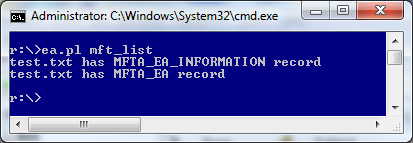
ea.pl mft_list
produces the following output:
Idea #4 – Detect ZeroAccess with hmft
It’s simple 🙂
- I ran hmft before the ZeroAccess installation
- Then I infected my test box
- I then ran hmft after the ZeroAccess installation

At this stage, all I had to do was to run ea.pl on both outputs and I got the following results:

Or, for the sake of copy & paste (and web bots :)):
r:\>ea.pl before_installation
V20~1.6 has MFTA_EA_INFORMATION record
V20~1.6 has MFTA_EA record

r:\>ea.pl after_installation
U has MFTA_EA_INFORMATION record
U has MFTA_EA record
V20~1.6 has MFTA_EA_INFORMATION record
V20~1.6 has MFTA_EA record
U has MFTA_EA_INFORMATION record
U has MFTA_EA record
services.exe has MFTA_EA_INFORMATION record
services.exe has MFTA_EA record/span>
As we can see, the malware activity is immediately visible.
Btw. V20~1.6 is a $MFT FILE record that refers to C:\Windows\CSC\v2.0.6 and is related to Offline files (client-side caching). I don’t have any information about the content of this EA. Perhaps someone will be more curious than me to poke around there 🙂
Idea #5 – Create a Frankenstein’s monster
Using EA and ADS (Alternate Data Streams) with a single file is also possible.
You can use ea.exe to create such Frankenstein’s monster in 2 simple steps:
- by running it first with a filename only – this will create EA record
- and then re-runing it with a stream name, this will create the ADS, but EA for ADS will fail (sometimes it’s OK to fail :))
The result is shown on the following screenshot:

Using hmft and a combination of ea.pl and ads.pl (posted in older post related to HMFT) in a single eads.pl script:
use strict;
my $f='';
my $l='';
while (<>)
{
  s/[\r\n]+//g;
  $f = $1 if /FileName = (.+)$/;
  print "$f has $1 record\n" if ($l =~ /(MFTA_EA(_[A-Z]+)?)/);
  print "$f:$1\n" if ($l =~ /MFTA_DATA/&&/AttributeName = (.+)$/);
  $l = $_;
}
we can easily detect such beast as well.
That’s all, thanks for reading!