Finding Smoking Gun and going beyond that – Helpful Forensic Artifacts

While I am quite critical about the idea of collecting IOCs (Indicator of Compromise) describing various malware, traces of hacking, etc in a form of hashes, even fuzzy hashes, file names, sizes, etc., etc.  I do believe that there is a certain number of IOCs (or as I call them: HFA –  Helpful Forensic Artifact – as they are not necessary relevant to compromise itself) that are universal and worth collecting. I am talking about artifacts that are common to malware functionality and offensive activities on the system in general as well as any other artifact that may help both attackers and… in investigation (thanks to ‘helpful’ users that leave unencrypted credentials in text files, watch movies on critical systems, etc.).

In this post, I will provide some practical examples of what I mean by that.

Before I kick it off, just a quick reminder – the reasons why I am critical about bloated IOC databases is that they have a very limited applicability in a general sense; and the limitations come as a result of various techniques used by malware authors, offensive teams, etc. including, but not limited to:

  • metamorphism
  • randomization
  • encryption
  • data (e.g. strings) build on the fly (instead of hardcoding)
  • shellcode-like payloads
  • fast-flux
  • P2P
  • covert channels
  • etc.

Notably, antivirus detections of very advanced, metamorphic malware rely on state machines not strings and it’s naive to assume that collecting file names like sdra64.exe is going to save the day…

Anyway…

If we talk about good, interesting HFAs I think of things that:

  • are very often used in malware because of a simple fact they need to be there (dropping files, autostart, etc.)
  • traces of activities that must be carried on the compromised system (recon, downloading toolchests, etc.)
  • also (notably) traces of user activity that support attacker’s work (e.g. a file password.txt is not an IOC, but it’s HFA)
  • traces of system being affected in a negative way e.g. if system has been compromised previously by a generic malware, certain settings could have been changed (e.g. disabled tracing, blocked Task Manager, etc.); they are IOCs in a generic sense, but not really relevant to the actually investigated compromise; you can think of it of these aspects of system security that place the system on the opposite side to the properly secured and hardened box; it also included previously detected/removed malware – imho AV logs are not ‘clear’ IOCs as long as they relate to the event that is not related to investigated compromise

If we talk about a typical random malware, it’s usually stupidly written, using snippets copied&pasted from many sources on the internet. The authors are lazy and don’t even bother to encrypt strings, so detection is really easy. You can grep the file or a memory dump of a suspected process for typical autorun strings with strings, BinText, HexDive and most of the time you will find the smoking gun. If the attacker is advanced, all you will deal with is a blob of binary data that has no visible trace of being malicious unless disassembled – that is, a relocation independent, shellcode-like piece of mixed code/data in a metamorphic form that doesn’t require all the fuss of inline DLL/EXE loading, but it’s just a pure piece of code. It’s actually simple to write with a basic knowledge of assembly language and knowledge of OS internals. I honestly don’t know how to detect such malware in a generic way. I do believe that’s where the future of advanced malware is though (apart from going mobile). And I chuckle when I see malware that is 20MB in size (no matter how advanced the functionality).

When we talk about IOC/HFAs and offensive security practices, it is worth mentioning that we need to follow the mind process of an attacker. Let me give you an example. Assuming that the attacker gets on the system. What things s/he can do? If the malware is already there, it’s easy as the functionality is out there and can be leveraged, malicious payload updated and attacker can do anything that the actual payload is programmed to do and within the boundaries of what environment where it runs permits. On the other hand, if it is an attack that comes through a typical hacking attempt, the situation is different. In fact, the attacker is very limited when it comes to available tools/functionality and often has to leverage existing OS tools. This means exactly what it says – attacker operates in a minimalistic environment and is going to use any possible tool available on OS to his/her benefit. If we talk about Windows system, it can be

  • net.exe (and also net1.exe)
  • telnet.exe
  • ftp.exe

but also

  • arp.exe
  • at.exe
  • attrib.exe
  • bitsadmin.exe
  • cacls.exe
  • certutil.exe
  • cmd.exe
  • command.com
  • compact.exe
  • cscript.exe
  • debug.exe
  • diantz.exe
  • findstr.exe
  • hostname.exe
  • icacls.exe
  • iexpress.exe
  • ipconfig.exe
  • makecab.exe
  • mofcomp.exe
  • more.com
  • msiexec.exe
  • mstsc.exe
  • net1.exe
  • netsh.exe
  • netstat.exe
  • ping.exe
  • powershell.exe
  • reg.exe
  • regedit.exe
  • regedt32.exe
  • regini.exe
  • regsvr32.exe
  • robocopy.exe
  • route.exe
  • runas.exe
  • rundll32.exe
  • sc.exe
  • schtasks.exe
  • scrcons.exe
  • shutdown.exe
  • takeown.exe
  • taskkill.exe
  • tasklist.exe
  • tracert.exe
  • vssadmin.exe
  • whoami.exe
  • wscript.exe
  • xcacls.exe
  • xcopy.exe

and OS commands

  • echo
  • type
  • dir
  • md/mkdir
  • systeminfo

and many other command line tools and commands.

So, if you analyze memory dump from a Windows system, it’s good to search for presence of a file name associated with built-in windows utilities and look at the context i.e. surrounding memory region to see what can be possibly the reason of it being there (cmd.exe /c being the most common I guess).

Back to the original reason of this post – since I wanted to provide some real/practical examples of HFAs that one can utilize to analyze hosts, let me start with a simple classification by functionality/purpose:

  • information gathering
    • net.exe
    • net1.exe
    • psexec.exe/psexesvc.exe
    • dsquery.exe
    • arp.exe
    • traces of shell being used (cmd.exe /c)
    • passwords.txt, password.txt, pass.txt, etc.
  • data collection
    • type of files storing collected data
      • possibly password protected archives
      • encrypted data (e..g credit cards/track data)
    • various 3rd party tools to archive data:
      • rar, 7z, pkzip, tar, arj, lha, kgb, xz, etc.
    • OS-based tools
      • compress.exe
      • makecab.exe
      • iexpress.exe
      • diantz.exe
    • type of collected data
      • screen captures often saved as .jpg (small size)
      • screen captures file names often include date
      • keystroke names and their variants
        • PgDn, [PgDn],{PgDn}
        • VK_NEXT
        • PageDown, [PageDown] {PageDown}
      • timestamps (note that there are regional settings)
      • predictable Windows titles
        • [ C:\WINDOWS\system32\notepad.exe ]
        • [ C:\WINDOWS\system32\calc.exe ]
        • [http://google.com/ – Windows Internet Explorer]
        • [Google – Windows Internet Explorer]
        • [InPrivate – Windows Internet Explorer – [InPrivate]]
      • possible excluded window class names
        • msctls_progress32
        • SysTabControl32
        • SysTreeView32
      • content of the address bar
      • attractive data for attackers
        • regexes for PII (searching for names/dictionary/, states, countries, phone numbers, etc. may help)
        • anything that matches Luhn algorithm (credit cards)
      • input field names from web pages and related to intercepted/recognized credentials
        • user
        • username
        • password
        • pin
      • predictable user-generated content
        • internet searches
        • chats (acronymes, swearwords, smileys, etc.)
  • data exfiltration
    • who
      • username/passwords
    • how
      • ftp client (ftp.exe, far.exe, etc.)
      • browser (POSTs, more advanced: GETs)
      • DNS requests
      • USB stick
      • burnt CD
      • printer
    • how
      • just in time (frequent network connection)
      • ‘coming back’ to the system
    • configuration
      • file
      • registry
      • uses GUI (lots of good keywords!)
    • where to:
      • URLs
      • FTP server names
      • SMTP servers
      • mapped drives (\\foo\c$)
      • mapped remote paths (e.g. \\tsclient)
  • malicious code
    • any .exe/.zip in TEMP/APPLICATION DATA subfolders
    • processes that have a low editing distance between their names and known system processes (e.g. lsass.exe vs. lsas.exe)
    • processes that use known system processes but start from a different path
    • areas of memory containing “islands” with raw addresses of APIs typically used by malware e.g. CreateRemoteThread, WriteProcessMemory, wininet functions
  • mistakes
    • Event logs
    • AV logs/quarantine files
    • leftovers (files, etc.)

Many of these HFAs form a very managable set that when put together can be applied to different data sets (file names, file paths, file content, registry settings, memory content, process dumps, etc.).

In other words – instead of chasing after a sample/family/hacking group-specific stuff, we look for traces of all these things that make a malware – malware, a weak system – weak, a hack – hack and attack-supporting user – victim.
Beyond good ol’ Run key

I recently kept posting quite a lot about random stats from 300k/1M samples. Today something different for a change: non-obvious or less-known autorun entries.

The ‘obvious’ introduction

As we know, malware needs to work. To do so, it needs to ensure it runs when the system starts. Well, not really. In fact, it just needs to ensure it runs in general and can start at any time as long as it is at a right moment to activate its payload (e.g. keylogger doesn’t need to autostart with the system; it can activate when the user opens a browser or mail client).

Malware authors are really lucky.  There are so many autorun possibilities in Windows that it is really hard to count. One of the best known tools that try to enumerate most of the entries are Start Runners and Sysinternals’ autoruns. They both do a a great job by highlighting many of the suspicious files, but… deep inside the registry and file system exist a HUGE number of completely new, unexplored (or possibly less or under- explored) paths that can be (maybe already are)  misused.

Obviously, run-at-system start, run-at-logon are commonly used out of convenience, yet all file/registry locations supporting this persistence mechanism are already very well known and pretty much every single AV is always scanning these locations first (not to mention forensic investigators poking around on the analyzed system :)). There are of course many examples of other autostart locations that are not system/logon related and these include Browser Helper Objects, Layered Service Provider DLLs, codecs, protocols handlers, shell extensions, toolbars, deskbars, etc. etc. These are not all though and there is a lot of possibilities out there.  In this post I provide a quick brain dump of various ideas related to this subject – some may be considered silly, or not worth attention, but… oh well, it’s just a post about possibilities 🙂 Better evil known that unknown.

The autoruns hidden inside other applications

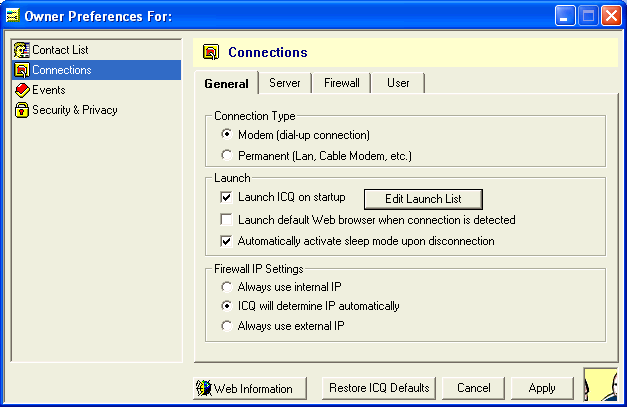
One of the non-standard autorun entries that is probably the most known and documented is the ICQ entry stored under:

  • HKEY_CURRENT_USER\Software\Mirabilis\ICQ\Agent\Apps

The old version of ICQ allowed to add a list of applications that it would launch when it connected to network – the following screenshots are taken from old versions of this great software (imho it used to be a real killer app!).

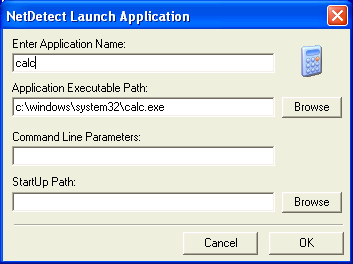
Adding calculator to be run by ICQ was relatively easy:

And it would then appear on the list:

Looking at the registry under

  • HKEY_CURRENT_USER\Software\Mirabilis\ICQ\Agent\Apps

would show us the actual entry:

I have a vague memory of successfully testing it ages ago, but since the old version no longer works and I was unable to confirm it for this blog post let’s just trust the evidence that can be found online: Googling for this key brings up quite a few hits that show evidence of it being actively used by malware.

As far as I know new versions of ICQ do not support it anymore.

This, obviously is not the only app ever developed that ‘by design’ helps in launching application when some task/event is completed.

For example, similar functionality can be found in many torrent applications e.g. utorrent:

Adding the entry as shown on the screenshot would make utorrent launch calculator every time it finishes downloading the torrent (the actual data for utorrent autorun is stored inside its configuration file settings.dat).

Same goes for bittorrent client (not a surprise the code of the clients being shared)

Again, the settings.dat holds the ‘autorun’ data:

There may be other applications like this.

The even more hidden autoruns hidden inside applications

Pretty much every single downloader, torrent client, media grabber, etc. contains an option to preview files a.k.a. media player.

This is certainly a possible malware’s autorun as it will be executed anytime someone tries to preview/prelisten the video/music downloaded from P2p client or grabbed from a media grabber; again in a case of e.g. for utorrent:

and emule:

There are certainly lots of applications like this.

‘Scanning’ files with AV when downloaded

Another option to place a malicious file resides in many applications e.g. browsers, mail clients. They allow to scan every single  file that has been downloaded from the internet, attached to email or received via Instant Messenger with an extremal application.

Such feature is available e.g. in Firefox with a Download Status Bar installed.

The about:config page shows the following options (false assigned to ‘downbar.function.virusScan’ property indicates the scan is being disabled)”

the default application selected is ‘C:/Program Files/myAnti-VirusProgram.exe’, but of course malware could easily replace it: 

and modify the ‘downbar.function.virusScan’ property to true.

Notably, placing malware as ‘c:\Program Files\myAnti-VirusProgram.exe’ doesn’t seem to work due to slash/backslash war (this could be a neat trick if it worked).

Windows Shell alternatives

Windows Explorer is not the only Windows Shell available. In fact there are lots of alternatives and each of them brings lots of new options to the table. Looking at programs used by hundreds of thousands (if not millions) of users and including Total Commander, FAR, and many others can cause a real headache. From an offensive perspective there are really a lot of opportunities: from plugins and extensions, to completely new (lame, but certainly workable) ‘rootkitish’ methods for hiding under (sic!) the shell (e.g. custom views, or even simple GUI attacks).

The less obvious places for malware autorun

Most of producers of scanners/printers/combos offer  ‘associated software’ that will be taking control of many aspects of the dialog between the user, device and computer.

One of the tasks handled by the software is  ‘Start this program’ function which is an application that runs when certain events happen e.g. you press a specific button on the scanner/printer. The following screenshot is taken on a system with a CanoScan 4400F scanner attached to it, but with no software installed. The ‘Start this program’ option is grayed out.

Installing a Canon Toolbox gives assigns this program to an event associated with various user activities e.g. pressing COPY button on the scanner.

Clicking the ComboBox reveals more events – all of them are associated with the specific application:

You are probably wondering now where the information about this is stored in the registry/on the file system.

The program responding to device events itself is an example of Push-Model Aware Applications added to the system via Windows Image Acquisition (WIA) / Still Image  interface (STI).

The location in the registry where the Push-Model Aware Applications installed on the system are actually listed are described in the article that I just linked to:

  • HKEY_LOCAL_MACHINE\SOFTWARE\Microsoft\Windows\CurrentVersion\StillImage\Registered Applications

The programs registered this way can respond to STI events. Of course, malware could overwrite/manipulate the entry and act as a man in the middle between the devioe and the actual software configured to respond to the event. It could also be added to respond to certain events – the actual registry entries that need to be added are described here (I have not tested it though): and include:

  • HKEY_LOCAL_MACHINE\SOFTWARE\Microsoft\Windows\CurrentVersion\explorer\AutoplayHandlers\Handlers
  • HKEY_LOCAL_MACHINE\SOFTWARE\Microsoft\Windows\CurrentVersion\StillImage\Registered Applications
  • HKEY_LOCAL_MACHINE\SYSTEM\CurrentControlSet\Control\StillImage\Events\STIProxyEvent

Autostart by re-using existing entries

Instead of adding new entries to Run/Startup folder, etc. malware can leverage existing registry entries. In many cases, swapping VERY common entries e.g. for jusched.exe from Java updater, or ctfmon.exe could do the trick. Another option is companion infection for active processes on the system – especially interesting for applications in a Portable format as they are used more and more often and not too many people actually inspect their content. They can also easily be hidden on an inspected system and escape routine analysis of Program Files directory.

Plugins,  Plugins,  Plugins

I mentioned plugins in a context of Windows Explorer alternatives, the same goes for various office suites, Drawing/design applications, gfx viewers (note e.g. Irfanview has a subfolder storing all the plugins – DLL files) and so on and so forth. This is a tip of an iceberg.

File System infection

One of the most interesting pieces of malware back in DOS era was DIR-II. It had a unique way of infecting executable files by modifying their cluster map in the FAT itself. Each .exe would point to a cluster containing the malicious code (always the same cluster) so with a malware NOT active in memory, the file system would appear to be corrupted (because of multiple entries pointing to the same cluster – a problem known as cross-linking). With malware active in memory it would ‘fix’ cross-linking on the fly and execute files properly.

The very same technique could be potentially implemented for NTFS – this would require placing a small .exe on a system then changing the cluster sequence within FILE Record to always point to a cluster occupied by .exe. Other alternative (especially for the one formatted with a FILE record larger than 1024 bytes) would require a tiny .exe that could be stored within the $MFT file record itself (replacing non-resident attribute with a resident attribute) while the actual clusters used by a host file could be stored either in a different part of the file record or within the malicious code itself. In both cases, small .exe would read original clusters and transfer control to the host. Very very non-trivial task. Luckily.