Anti-forensics – live examples, Part 3

I recently spent some time analysing one of the ransomware samples (CryptoWall, md5=73a9ab2ea9ec4eaf45bce88afc7ee87e; thx to Kernelmode.info guys). Looking at the code I came across an interesting routine that the malware author crafted to release memory allocated by malware during run-time. The routine is interesting, because it releases the allocated buffer in a secure way.

Let’s have a look.

The function which I called ZeroFreeDecommitRelease is shown below:

CryptoWall1

The querymem function it refers to is just a wrapper for ZwQueryVirtualMemory, and the rest is I hope self-explanatory (btw. the code is position independent so you see reference to getAPITableOffset which is basically a  function returning a pointer to the sample’s import table allocated somewhere in memory).

CryptoWall2

There are a few interesting things here:

  • When the function ZwQueryVirtualMemory is called, it uses the MemoryInformation block which is allocated on the stack; if the function succeeded the data from the buffer is passed to the caller and then the MemoryInformation block is cleaned up by zeroes (using the memset function)
  • The ZeroFreeDecommitRelease function:
    • Is using the querymem wrapper to retrieve information about the block of memory it tries to free; it then tests its page attributes and if it is one of the attributes associated with a writable page it zeroes it first before decommitting it and then releasing it
    • It zeroes the whole region – not necessarily the size of the region requested when the memory was allocated, but the actual region (taking care of page boundaries)
    • Taking care of PAGE_WRITECOPY shows attention to details as it is not a page attribute that is often used by your average software / malware and could be omitted saving a few bytes of unnecessary code – the inclusion of this flag makes it look like a proper library function

This highlights not only the fact that some malware authors are seasoned developers, but also the fact they pay more and more attention to memory artifacts – buffers allocated by malware during run-time are full of juicy information and often contribute to finding a smoking gun or help in accessing unprotected/unencrypted code and data (e.g. configs) directly from memory. Limiting exposure of such artifacts is a direct challenge to the Locard’s Exchange Principle. It also makes life hard for forensic analysts – relying on dynamic analysis is obviously a daily bread for all of us, but it is simply not enough.

Beyond good ol’ Run key, Part 16

Documenting various persistence mechanisms would not be complete without mentioning these that could be based on legitimate and fully-documented system features. One such mechanism we are going to talk about is called ‘custom Power Shell profile’. It is a distant cousin of autoexec.bat and it can be abused to ensure some malware component is loaded anytime someone starts powershell host.

There is actually a full article describing this mechanism here, so I will just quote the most important (from the forensics perspective) bit:

  • %windir%\system32\Windows­PowerShell\v1.0\profile.ps1
    • This is for all users of the computer and for all shells.
  • %windir%\system32\Windows­PowerShell\v1.0\Microsoft.Power­Shell_profile.ps1
    • This is for all users of the computer, but it is only for the Microsoft.PowerShell shell.
  • %UserProfile%\Documents\Windows­PowerShell\profile.ps1
    • This is for the current user only and all shells.
  • %UserProfile%\Documents\WindowsPowerShell\Microsoft.PowerShell_profile.ps1
    • This is for the current user only and only for the Microsoft.PowerShell shell.

You can test it by running the following commands (obviously file writing restrictions apply depending on the OS and the user privileges):

md %UserProfile%\Documents\WindowsPowerShell\
md %windir%\system32\WindowsPowerShell
md %windir%\system32\WindowsPowerShell\v1.0\

echo echo profile1 >%windir%\system32\WindowsPowerShell\v1.0\profile.ps1
echo echo profile2 >%windir%\system32\WindowsPowerShell\v1.0\Microsoft.PowerShell_profile.ps1
echo echo profile3 >%UserProfile%\Documents\WindowsPowerShell\profile.ps1
echo echo profile4 >%UserProfile%\Documents\WindowsPowerShell\Microsoft.PowerShell_profile.ps1

and then run PowerShell.

Btw. If you are wondering what these commands are doing – first 3 ensure the respective directories exist; the next 4 ones create dummy profile files with a simple command ‘echo xyz’, where xyz is a number of the profile. When executed for testing purposes they will simply show you which profile has been loaded by PowerShell. In a real-case scenario these would be replaced with an instruction to launch malware or could be any PowerShell command.

Anyway, back to the test. You will most likely be surprised to see that PowerShell does not load these profiles without a fight i.e. you may see a couple of error messages.

This is because by default the OS policy prevents executing PowerShell scripts (including the profile scripts) and one has to enable them first as documented here.

The Windows Registry values guarding this policy are stored under respective hkcu/hklm branches:

software\policies\microsoft\windows\powershell\
         EnableScripts (REG_DWORD)
         ExecutionPolicy (REG_SZ)

One can enforce then script execution by running the following commands (hklm may replace hkcu):

reg add hkcu\Software\Policies\Microsoft\Windows\PowerShell /f /v EnableScripts /t reg_dword /d 1
reg add hkcu\Software\Policies\Microsoft\Windows\PowerShell /f /v ExecutionPolicy /t reg_sz /d Unrestricted

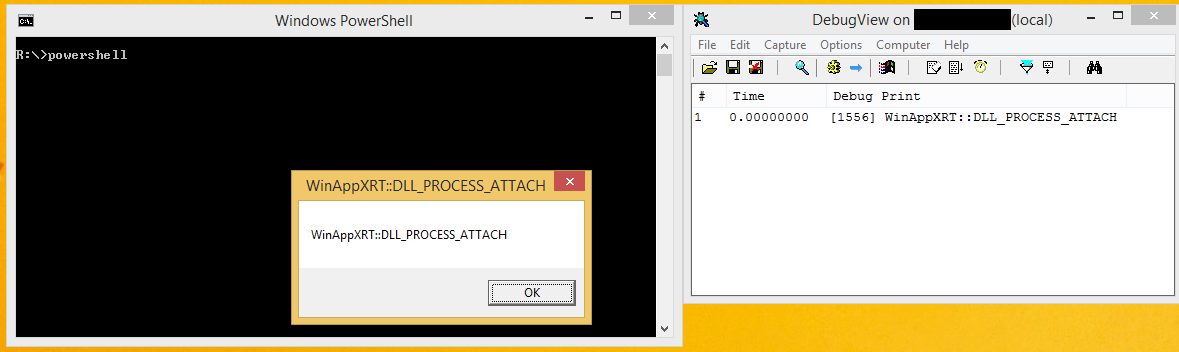
Launching PowerShell now will show the following:

powershell_profile

You can download a batch file that I used to test the commands here.

Tested on Windows 8.1 and Windows 7.